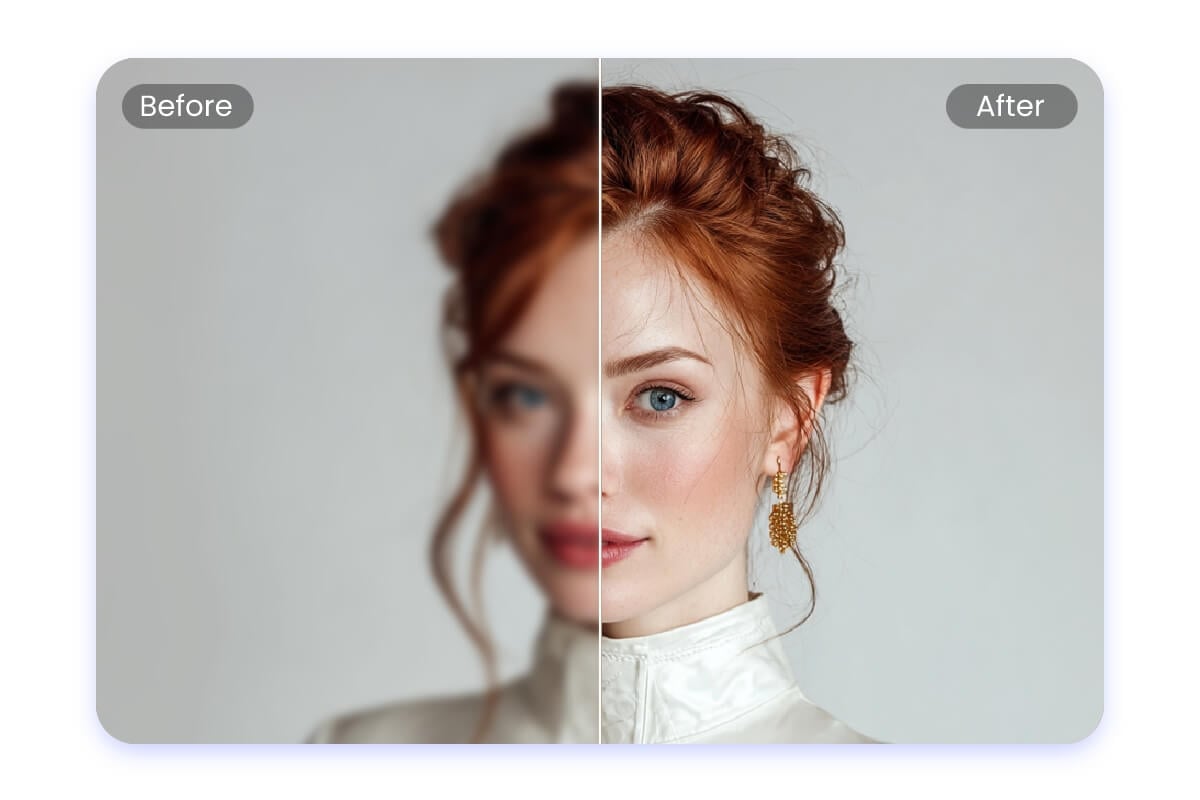
Improving photo resolution is a practical way to make images clearer and more detailed. Whether for printing, social media, or preserving old photos, increasing the resolution helps make pictures sharper and more vibrant. The most effective way to improve photo resolution is to use AI-powered tools that enhance clarity and enlarge images without losing quality.
These tools use smart techniques to add detail and reduce blur, making low-resolution photos look like they were taken with a better camera. Many free and easy-to-use options are available online, allowing anyone to enhance photos quickly without expert skills. Understanding how to upscale images properly ensures better results and saves time.
Knowing how to increase resolution allows users to revive old memories and improve visual content for various needs. With the right approach, photos can reach higher quality levels suitable for both digital and print use.
Key Takeways
- AI tools can enhance photo resolution effectively without quality loss.
- Simple methods are available to improve image sharpness quickly.
- Higher resolution images work better for printing and online use.
Understanding Photo Resolution
Photo resolution defines the level of detail an image holds and controls how clear or sharp it appears. It directly influences the size an image can be printed or displayed without losing quality. Different ways exist to measure and describe resolution, which helps users choose the right settings for their needs.
What Is Photo Resolution?
Photo resolution is the amount of detail an image contains. It is usually measured by the number of pixels, or tiny dots, that make up the image. More pixels mean more detail and a clearer picture.
Resolution can be described in two main ways: the total pixel count (like 1920 x 1080) and the pixel density. Pixel density measures how many pixels fit into one inch of the image, often called PPI (pixels per inch). Higher PPI means a sharper image.
Increasing resolution means adding more pixels, which can make images look clearer, especially when zoomed in or printed at large sizes.
How Resolution Affects Image Quality
Higher resolution generally means better image quality. When an image has many pixels, it shows finer details and sharper edges. This matters most when photos are printed or viewed on large, high-resolution screens.
Low-resolution images can look blurry or pixelated when enlarged. They contain fewer details, making them less crisp. Cropping an image also shows the limits of resolution; you lose clarity if the pixels are too low.
Good resolution improves not just sharpness but also the ability to edit photos without losing quality. It helps keep colors and edges clean, producing more professional results.
Common Resolution Measurements
Photo resolution is commonly measured in:
- Pixels (px): The number of pixels along width and height (e.g., 4000 x 3000 px). This shows total image size.
- PPI (Pixels Per Inch): The density of pixels printed or displayed per inch. Higher PPI means sharper prints.
- DPI (Dots Per Inch): Similar to PPI but used for printers. It refers to the number of ink dots on paper.
For digital screens, PPI matters for sharp viewing. For printing, DPI is key to getting clear, detailed photos. Typical print quality needs about 300 PPI or DPI, while screens usually display at around 72 PPI.
Methods to Increase Picture Resolution
Increasing picture resolution involves adding pixels, refining details, and improving clarity. Some methods use software to enlarge images while keeping quality. Others rely on AI to restore textures and sharpness. Manual tools give control over adjustments, focusing on fine-tuning resolution and removing noise.
Upscaling With Photo Editing Software
Photo editing software like Adobe Lightroom and Photoshop offers upscaling features to increase image size. These tools add pixels and smooth out details to prevent blur. Upscaling works best when the goal is to print larger versions or improve visuals for high-resolution displays.
Lightroom’s Super Resolution, for example, doubles the pixel count using advanced algorithms. It keeps edges sharp and colors intact. Photoshop allows resizing by adjusting image dimensions and using “Preserve Details 2.0” resampling to maintain clarity.
Upscaling software typically suits users who want fast improvements without manual tweaks. However, it depends on the original image quality to avoid excessive softness or artifacts.
Using AI-Powered Image Enhancement Tools
AI-based tools use machine learning models trained on millions of images. These tools analyze low-res photos and predict missing details. This process enhances textures and makes images look clearer without losing sharpness.
Programs like ON1 Resize AI and YouCam Enhance apply AI upscaling to restore clarity quickly. They also reduce noise and correct unwanted blur. AI tools are useful for older photos or images taken with low-quality cameras.
Many AI tools offer both desktop applications and free online versions. They work best on images with moderate resolution, producing sharper and more vibrant results than traditional methods.
Manual Adjustments in Photoshop or GIMP
Manual editing involves tweaking image details to improve perceived resolution. Users can increase canvas size, sharpen edges, and reduce noise for a cleaner look. Photoshop features like Unsharp Mask and High Pass filters help sharpen fine details.
In GIMP, users resize images using interpolation methods such as Cubic or Sinc (Lanczos3) to add pixels smoothly. Adjusting contrast and brightness can also enhance perceived sharpness.
Manual adjustments suit users familiar with photo editing and willing to spend time refining each image. This method offers the highest control but requires a good understanding of how image resolution works and varies based on the original photo quality.
Optimizing Resolution Improvements
Improving photo resolution requires careful choices that affect image clarity, file size, and detail retention. This process involves balancing the amount of data in the image, selecting the proper file type, and using effective techniques to keep the picture sharp after resizing.
Balancing Resolution and File Size
Increasing resolution often means adding more pixels, which can make the file size grow significantly. Larger files take more storage space and can slow down loading or sharing. It is important to find a balance that keeps the image clear while not creating excessively large files.
Users should consider the purpose of the image. For web use, a moderate resolution with compressed files works best. For printing, higher resolution is needed, but file size must still be manageable. Tools like Photoshop allow controlling resolution and compression levels together.
Choosing the Right Image Format
The image format affects both quality and file size. Common formats include JPEG, PNG, and TIFF. JPEG is good for photos because it compresses well but may lose some detail. PNG supports transparency and keeps quality intact but results in larger files. TIFF is best for high-quality prints but uses the most space.
For increasing resolution, JPEG is suitable for online use when size matters. PNG is better to keep sharp lines without blur. TIFF fits professional needs when detail matters most, such as in printing and editing stages.
Preserving Detail During Upscaling
Upscaling adds pixels but does not create real details. To keep images sharp, it is important to use techniques like AI-based upscalers or Photoshop’s advanced resampling. These tools analyze surrounding pixels to recreate edges and textures.
Avoid simple resizing methods that stretch images, which cause blurriness. Instead, use software that smooths while adding detail. Working with the highest quality original helps preserve fine elements during enlargement. Regularly checking the image during upscaling ensures the quality stays consistent.
Best Practices for High-Quality Results
Improving photo resolution requires careful attention to detail and precise adjustments. It is important to avoid errors that reduce image clarity and regularly check the image for unwanted effects that may arise during editing.
Avoiding Common Mistakes
One common mistake is over-enlarging images without proper tools. Increasing resolution too much can cause blur and loss of detail. Using AI upscalers or specialized software like Lightroom’s Super Resolution helps maintain sharpness while enlarging.
Another key mistake is ignoring the source quality. Starting with a low-quality image limits how much resolution can be improved. It’s best to work with the highest quality original available.
Editing settings like sharpness, contrast, and noise reduction should be applied carefully. Over-sharpening can create halos around edges, while too much noise reduction can soften details. Adjust these settings gradually and preview results frequently.
Checking for Artifacts and Distortions
Artifacts and distortions often appear after increasing resolution. These can include pixelation, unnatural edges, or color banding. Checking the image at 100% zoom helps spot these issues clearly.
Tools with AI enhancement may introduce errors like texture loss or strange patterns. It’s crucial to inspect the image thoroughly after using AI upscaling. Using comparison views to check before and after images can highlight problems.
If artifacts appear, adjusting sharpness and noise reduction settings or trying a different method can help. Sometimes a balance of minor editing and moderate resolution increase yields the best quality results.
Advanced Techniques to Improve Photo Resolution
Advanced methods focus on efficiency and maximizing image quality from original files. Processing many photos at once saves time, while using high-quality data like RAW files ensures better detail and color accuracy.
Batch Processing Multiple Images
Batch processing lets users increase resolution on many photos quickly. Instead of editing each image one by one, software automates the task, applying the same resolution settings across all files.
This process is useful for photographers managing large collections. Common tools include Adobe Photoshop’s batch features or AI-powered apps that upscale several images simultaneously. Users can set parameters like noise reduction, sharpening, and upscaling scale.
Batch processing improves workflow but requires careful setup. Choosing consistent settings avoids uneven results. It also saves time by handling repetitive tasks, making it ideal for e-commerce, events, or social media content creators who need many images enhanced fast.
Leveraging RAW Files for Better Results
Working with RAW files provides a higher-quality base for improving resolution. RAW formats contain uncompressed data directly from the camera sensor, preserving details lost in JPEG or PNG files.
Using RAW allows more control during editing. Users can adjust exposure, contrast, and colors without damaging image quality. Upscaling from a RAW file maintains sharper edges and finer texture.
Photo editors and AI upscalers benefit from the richer data in RAW images. The extra details help prevent blur and pixelation when enlarging pictures. Photographers are advised to shoot and work in RAW whenever possible to get the best output from resolution enhancement tools.
Applications and Use Cases
Increasing photo resolution serves practical purposes across different needs. It helps make images clearer, larger, and better suited for specific uses. Whether for detailed prints, social sharing, or repairing old photos, enhanced resolution improves the image’s usefulness and appeal.
Preparing Images for Print
High resolution is crucial for printing. Images need a minimum number of pixels per inch (PPI) to appear sharp and detailed on paper. Typically, 300 PPI is the standard for quality prints.
When increasing resolution for print, it’s important to avoid pixelation or blurriness. Tools like Photoshop or AI upscalers can add pixels intelligently, preserving edges and textures. This helps maintain image quality even when enlarging photos.
Print projects often involve photos for posters, flyers, or photo books. Therefore, starting with higher resolution or enhancing it afterward ensures the final printed product looks professional and clear.
Improving Photos for Social Media
Social media platforms compress images, which can reduce quality. Increasing resolution before uploading helps photos appear sharper and more vibrant online.
Users often share product photos, portraits, or artwork. Higher resolution images attract more attention because they show more detail. This can help increase engagement and improve branding, especially for businesses.
Online upscalers and mobile apps allow quick enhancement of photo quality without complicated editing software. Adjusting resolution ensures photos look their best on all devices, from phones to desktops.
Restoring Old or Low-Quality Images
Old photos often suffer from low resolution and damage. Increasing resolution assists in restoring these images by making details clearer and more defined.
AI tools can recreate missing pixels and refine blurry areas. This process can reveal facial features, backgrounds, or text that was hard to see before. It supports digital archiving and personal memories preservation.
Low-quality images from older cameras or screenshots benefit from resolution enhancement. The improvements make them more usable for sharing, printing, or editing without losing important visual information.